About CardifyAI
Learn exactly how to use the dashboard, free browser extension (Chrome, Microsoft Edge, and Firefox), Card Insight, per-card image uploads, and exports with simple, visual steps.
Web App Dashboard
Paste notes or upload PDFs, choose how many cards you want, and generate flashcards in seconds. The Free plan includes 10 cards/day and image uploads. Upgrade to Pro for 1,500 included cards per billing cycle, Card Insight, and no ads.
- Paste lecture notes, textbook sections, or work documentation
- Upload or copy-paste in PDF slides, handouts, or training materials, or other documents
- Upload images to the front or back of individual cards (optimized layout for external flashcard apps)
- Preview, remove individual cards, and export your deck
- Pro unlocks Card Insight, 1,500 included cards per billing cycle, optional credit packs after that, and an ad-free experience
Browser Extension (Free)
Highlight any text on the web and send it straight into CardifyAI with one click. The extension is free and available for Google Chrome, Microsoft Edge, and Firefox, using the same generation flow as the dashboard.
- Works on articles, browser PDFs, and online notes
- Prompted for how many cards you want
- Auto-opens CardifyAI with everything ready to generate
- Live on the Chrome Web Store — install it and start sending highlighted text to CardifyAI instantly.
Export to Flashcard Apps
CardifyAI is designed to integrate seamlessly with the most widely used flashcard platforms. Generate your deck once and import it wherever you study. Any cards you remove in the preview stay out of the exported file.
- Anki (.apkg) for direct import (images embedded)
- CSV for Quizlet, Brainscape, Knowt, RemNote, and spreadsheets (where supported)
- JSON for advanced workflows
- Exports always reflect your latest edited deck (after deletions and image uploads)
1. Using the CardifyAI Dashboard
The dashboard is the core of CardifyAI. You’ll use it to turn your raw study or training material into clean, exportable flashcards — whether you’re on the Free plan (10 cards/day) or upgraded to Pro for 1,500 included cards per billing cycle, Card Insight, and no ads.
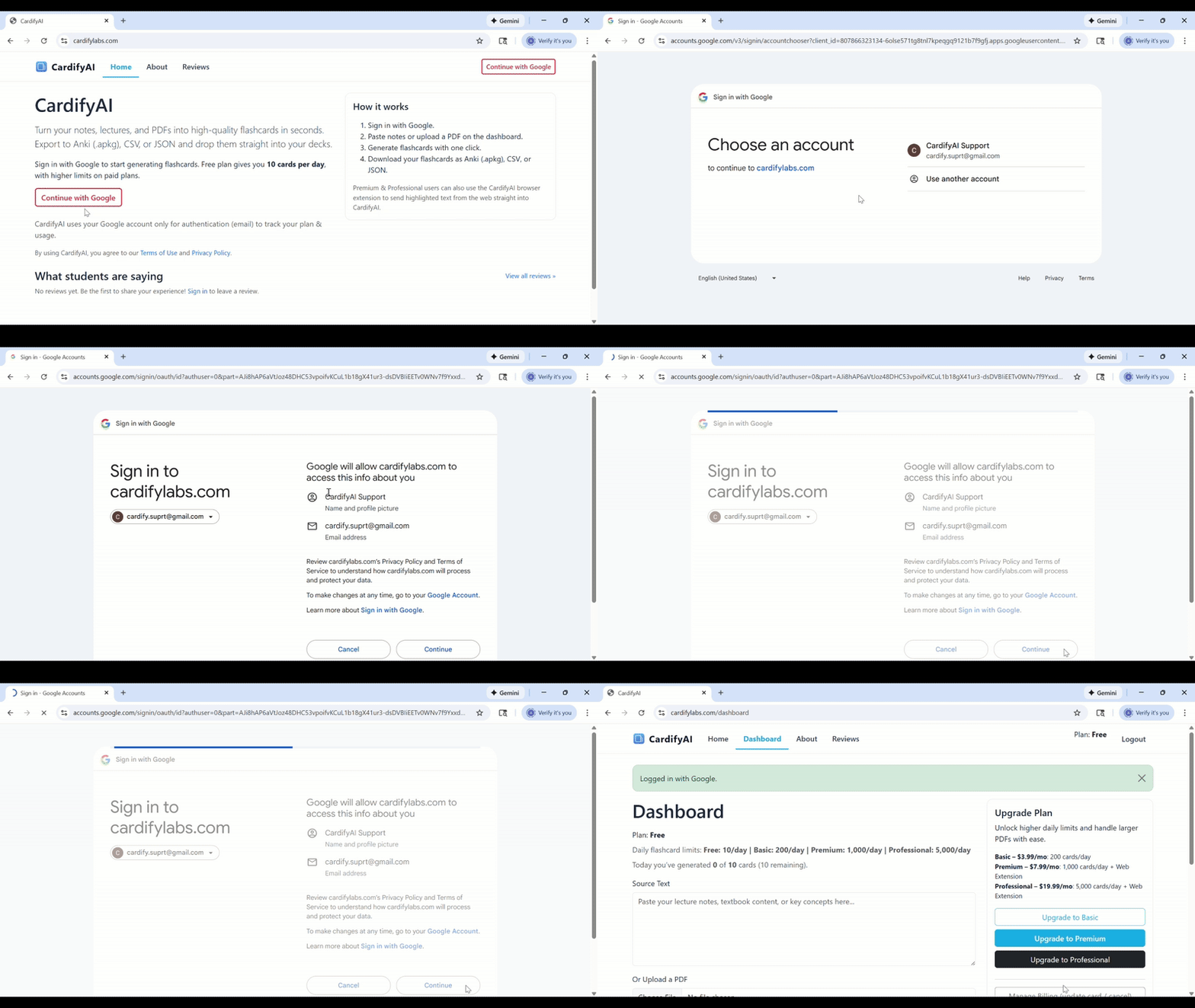
Step 1 · Open the Dashboard
-
Go to the CardifyAI website and sign in with Google or email to access your dashboard experience.
Your plan determines your daily limit and advanced features:
- Free: 10 cards/day, image uploads included
- Pro ($7.99/month): 1,500 included cards per billing cycle, Card Insight, and no ads
- Click Dashboard in the top navigation bar.
- You’ll see the Source Text box, PDF upload field, card count input, and (if you’re on Pro) access to Card Insight after your deck is generated.
Step 2 · Add your study material
-
Option A – Paste text:
Copy your lecture notes, textbook paragraphs, training documents, or high-yield bullets and paste them into the Source Text box. -
Option B – Upload a PDF:
Click the Upload a PDF field and select your slides or handouts. If you also pasted text, CardifyAI will combine both. - In the Number of Base Cards field, enter how many flashcards you’d like (for example, 25, 50, or 100). This is the count of the main “base” cards the AI will generate directly from your content.
- Optional (Pro plan): after your deck is generated, click Card Insight under any card to create a grounded explanation using that card plus the most relevant saved source chunk. Card Insight is ideal when you want extra depth without generating duplicate cards.
Step 3 · Generate, edit, add images, and preview your deck
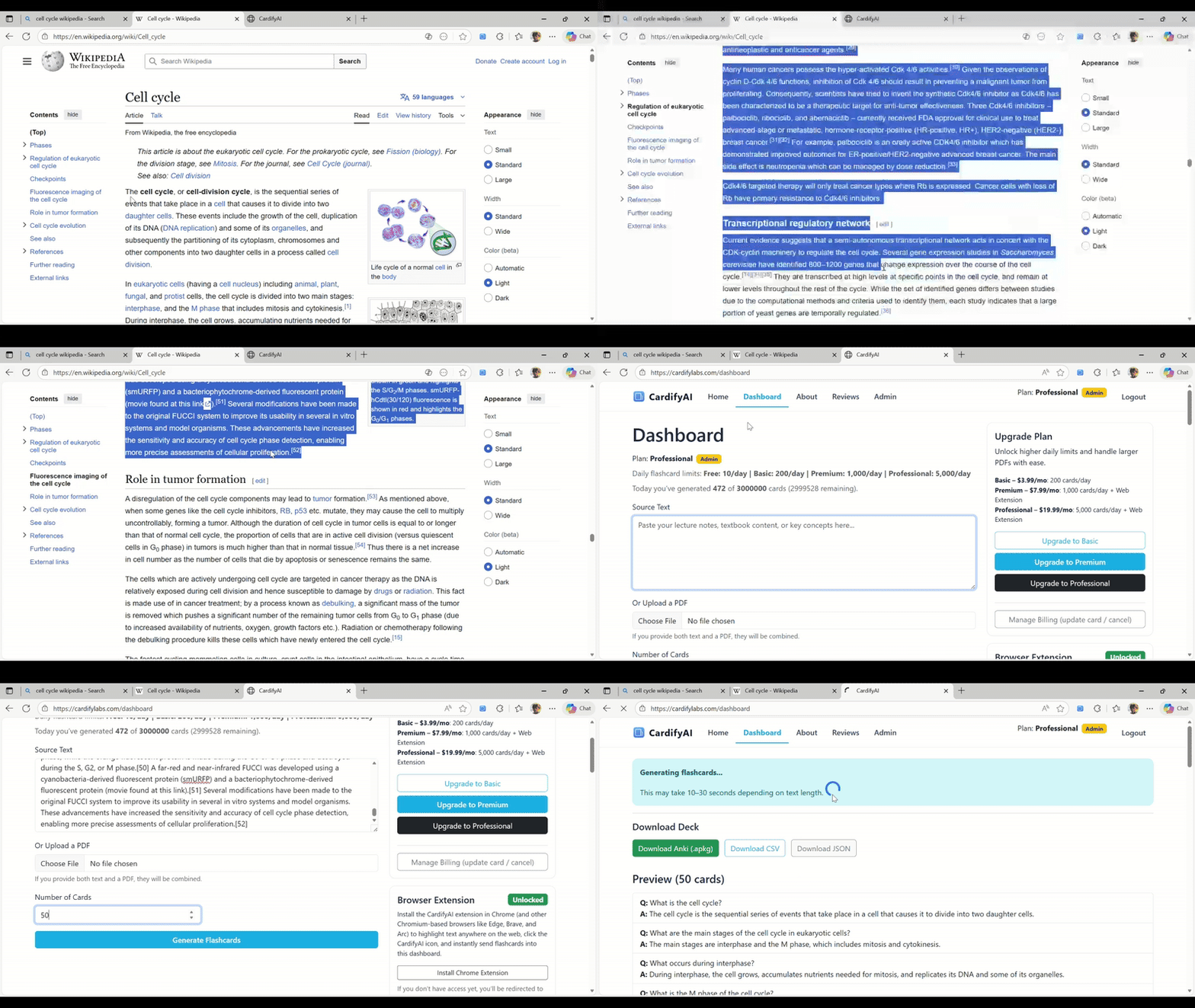
- Click the Generate Flashcards button.
- A short loading message will appear while CardifyAI processes your content.
- After generation, scroll down to the Preview section to review each front (question) and back (answer).
- If you generate Card Insight on a card (Pro plan), you’ll see the grounded explanation related to each topic. These are tagged with a small “B” badge in the UI so you can spot them quickly; this tag is not included in exported files.
- You can remove individual cards from the preview with the Remove button. Removed cards will not be included in any exports.
-
On both Free and Pro plans, you’ll also see an
Upload Image option next to each card. You can:
- Choose whether the image appears on the front or back of the card.
- Upload diagrams, figures, charts, screenshots, or any visual aid that clarifies the concept.
- CardifyAI automatically formats and sizes the image to fit the flashcard area in external apps without overlapping the text, while still leaving room for the written content.
- Once you’re happy with the cards and images, you’re ready to download your deck and import it into your flashcard platform.
2. Using the CardifyAI Browser Extension (Free)
The extension lets you highlight text anywhere on the web and instantly send it into CardifyAI without leaving the page. It’s free and built to make capturing content frictionless — so you can spend your time reviewing, not copying and formatting.
Step 1 · Install the extension, highlight text, and send it to CardifyAI
- Sign in on the CardifyAI website and open the Dashboard.
- Install the CardifyAI extension from the Chrome Web Store: Chrome Web Store listing .
- In your browser, complete the installation and (optionally) pin the CardifyAI extension icon so it’s easy to click.
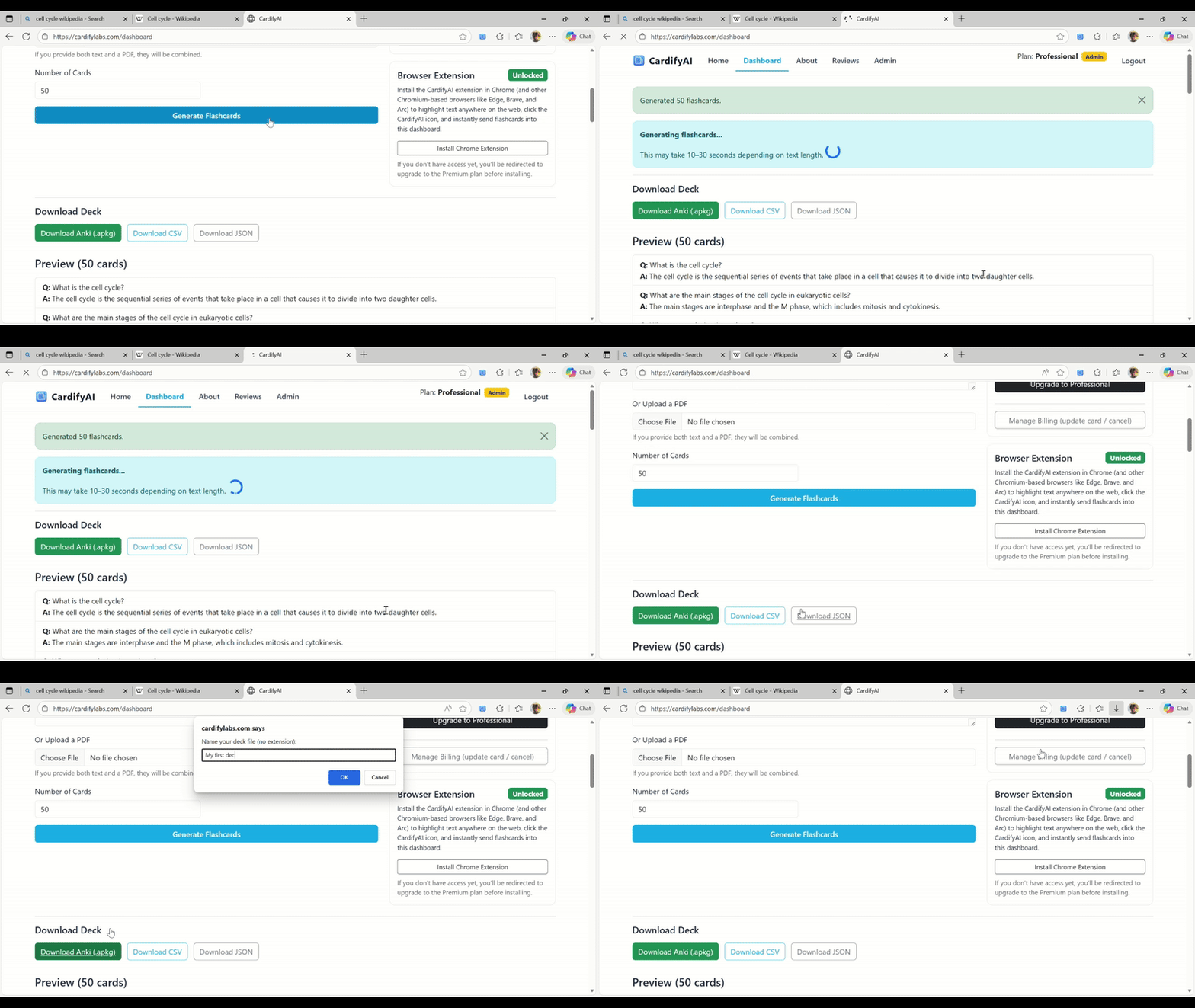
- Navigate to any article, browser-rendered PDF, or online notes.
- Use your mouse to highlight the text you want to study.
- Click the CardifyAI extension icon (or use the right-click context menu option). If you’re not signed in, you’ll be redirected to the login page before continuing.
- When prompted, choose how many flashcards you want to generate (for example, 20) and confirm. Your generation limits are based on your current access: guest, free, or Pro.
- The extension opens your CardifyAI Dashboard with the text and requested card count already filled in. CardifyAI then generates the flashcards.
- Scroll down to preview the deck, remove any cards you don’t want, add images, and then export your deck.
3. Exporting & Importing into Your Flashcard App
Once you like your deck (after removing any cards you don’t want and adding images), you can export it and import it into your preferred flashcard platform — including Anki, Quizlet, Brainscape, Knowt, RemNote, and any app that supports CSV or JSON.
Step 1 · Name your deck, export from CardifyAI, and import into your flashcard app
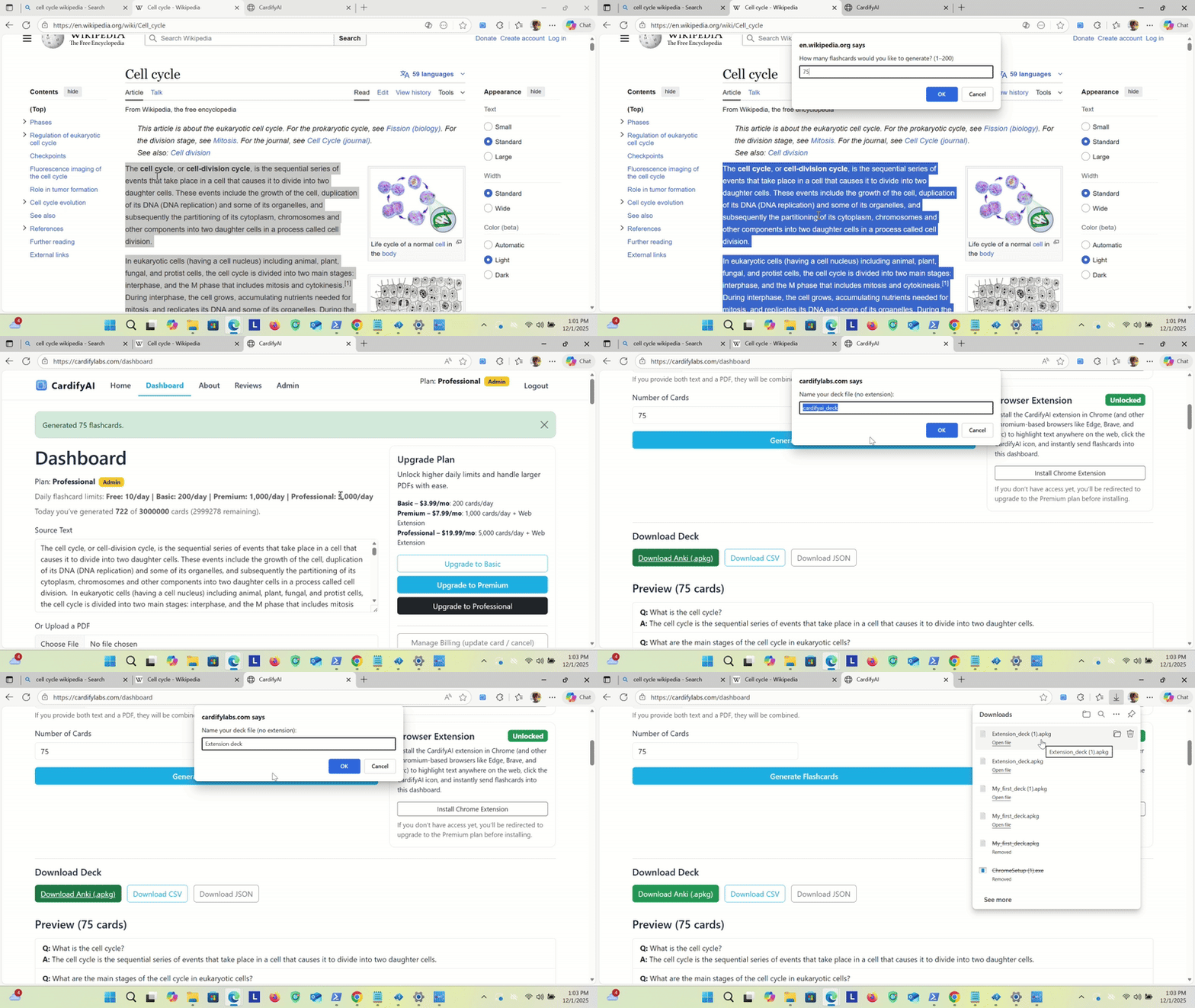
- On the Dashboard, scroll to the Preview and Download Deck section.
- Make any final edits by using the Remove button beside cards you don’t want. The exported deck will only include the remaining cards and any images you’ve attached.
-
Click one of the download buttons. You’ll be prompted to
name your deck file (no extension needed); CardifyAI automatically appends
.apkg,.csv, or.jsondepending on the format you choose. -
Choose your preferred format:
- Anki (.apkg) – best for direct Anki use, with images embedded.
- CSV – best for Quizlet and most other flashcard platforms that support spreadsheet imports.
- JSON – ideal for custom tooling, automation, or advanced workflows.
- Click the download button and save the file to a folder you can easily find.
- Open your flashcard platform (Anki, Quizlet, Brainscape, Knowt, RemNote, etc.).
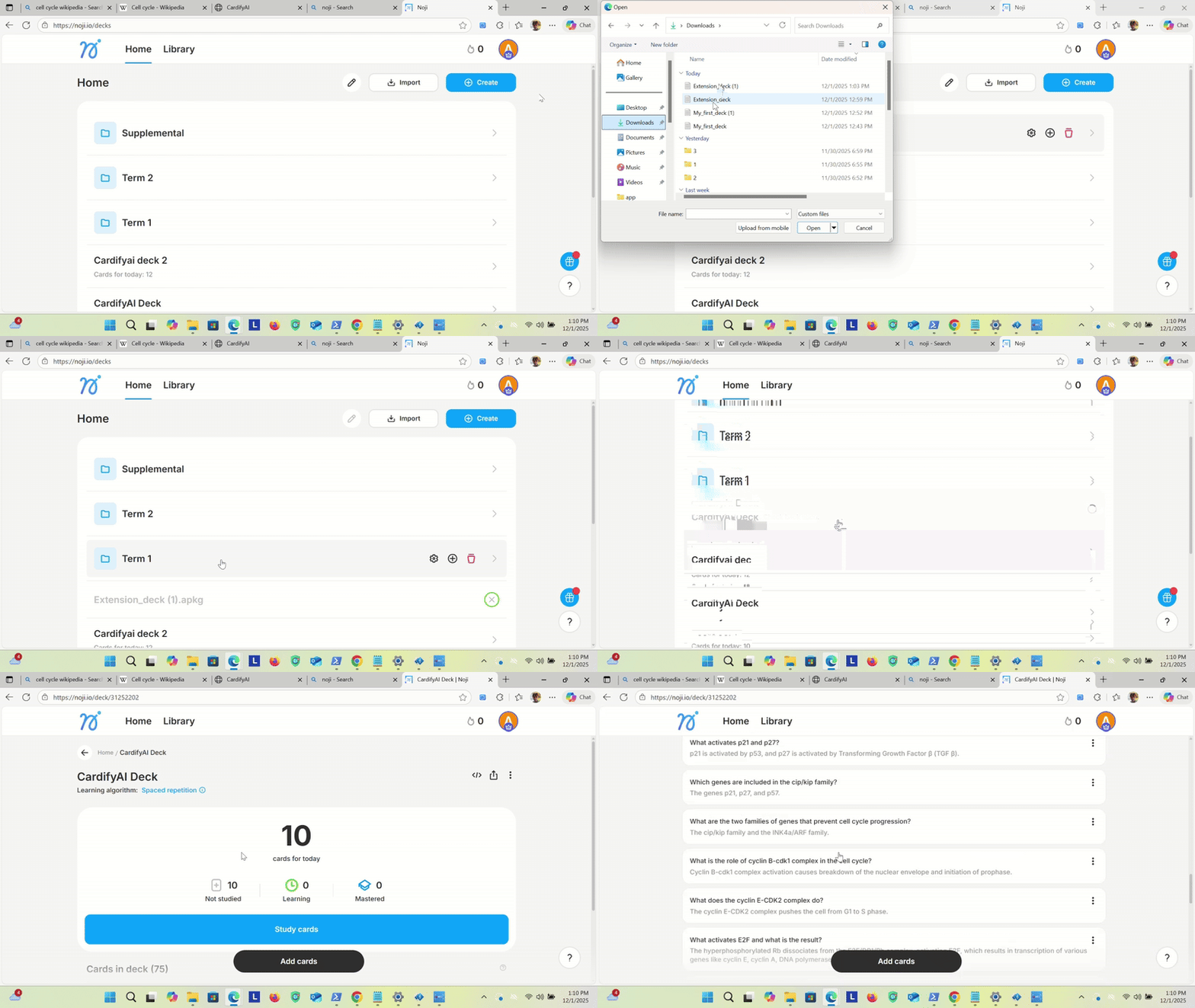
- Use the platform’s Import option and select the file you downloaded from CardifyAI.
- Your cards (and any attached images) will appear inside your flashcard app, ready for review and spaced repetition.
Important: CardifyAI itself does not store decks long-term; import your export into your flashcard platform to save, organize, and review over time.
Why Not Just Use Quizlet?
Quizlet and other flashcard platforms are excellent for studying. The challenge isn’t reviewing flashcards, it’s creating enough high-quality cards quickly.
Manually turning lectures, textbooks, slides, or training documents into flashcards can take hours: deciding what matters, writing questions, typing answers, organizing concepts, and attaching images. That time adds up fast during exam season or when you’re learning something new.
CardifyAI solves that bottleneck. You bring the material — CardifyAI generates a structured deck in seconds, then you export it into the platform you already use.
- Paste notes or upload PDFs
- Generate clean flashcards instantly
- Export into Quizlet, Anki, Brainscape, Knowt, RemNote, or any CSV-compatible tool
CardifyAI doesn’t replace your flashcard app - it accelerates it, so you can spend your time reviewing.
4. Subscription Plans
CardifyAI keeps pricing simple: one generous free plan, a Pro subscription, and optional one-time credit packs for students and professionals who want full power, deeper learning features, and a clean ad-free experience.
| Plan | Daily Card Limit | Card Insight | Per-Card Image Uploads | Chrome Extension | Ads | Downloads |
|---|---|---|---|---|---|---|
| Free | 10 cards/day | No | Yes (front or back) | Yes | Yes | Anki (.apkg), CSV (Quizlet & others), JSON |
| Pro – $7.99/month | Pro | Yes | Yes |
Yes
Free on Chrome, Edge, and Firefox
|
No ads | Anki (.apkg), CSV (Quizlet & others), JSON |
Pro includes 1,500 cards each billing cycle, unlocks Card Insight for deeper learning, and lets you add credits when needed, and disables ads for a cleaner workflow.
Built for Students and Professionals
CardifyAI is used by students preparing for major exams, but it’s not limited to academics. It’s built for anyone who needs to convert dense information into active recall efficiently.
- College and graduate students
- Medical, nursing, law, and engineering students
- Certification prep (PMP, CPA, IT, real estate, finance, and more)
- Language learners
- Professionals onboarding into new systems, policies, technical tools, or reviewing research/studies
Anytime you’re turning reading into retention, CardifyAI reduces prep time dramatically so you can focus on mastery.
Follow CardifyAI
Get study tips, feature updates (like Card Insight improvements and extension updates), and short walkthroughs by following CardifyAI on social media.